You find a folder of old videos, drag it to the Trash and check your free space. The number hasn’t moved. Nothing is wrong: on macOS, moving a file to the Trash and freeing its space are two separate steps.
The Trash is just a folder
When you move a file to the Trash, macOS moves it into a hidden folder on the same disk. The file keeps all its data, so it keeps using the same amount of space. That is what makes Put Back possible: nothing has been deleted yet.
When the space comes back
The space is released when the file leaves the Trash. That happens in one of three ways:
- You choose Finder › Empty Trash.
- You delete a single item from the Trash with Delete Immediately.
- You turned on “Remove items from the Trash after 30 days” in Finder › Settings › Advanced, and 30 days have passed.
Emptying the Trash can’t be undone, which is why it deserves its own moment of attention.
Why the number may still not change
Sometimes available space stays the same even after you empty the Trash. The most common reasons:
- Local snapshots. Time Machine can keep snapshots of your disk. Deleted files can stay in a snapshot for a while. macOS counts that space as purgeable and releases it when it needs room.
- Purgeable space in general. macOS reports some space as available even though it is still in use by caches or iCloud files it can remove on demand. Different apps may show slightly different numbers.
- Files only in iCloud. With Optimize Mac Storage, some files live only in iCloud. Deleting them frees nothing on your Mac and removes them from iCloud.
How DiskJoy shows this
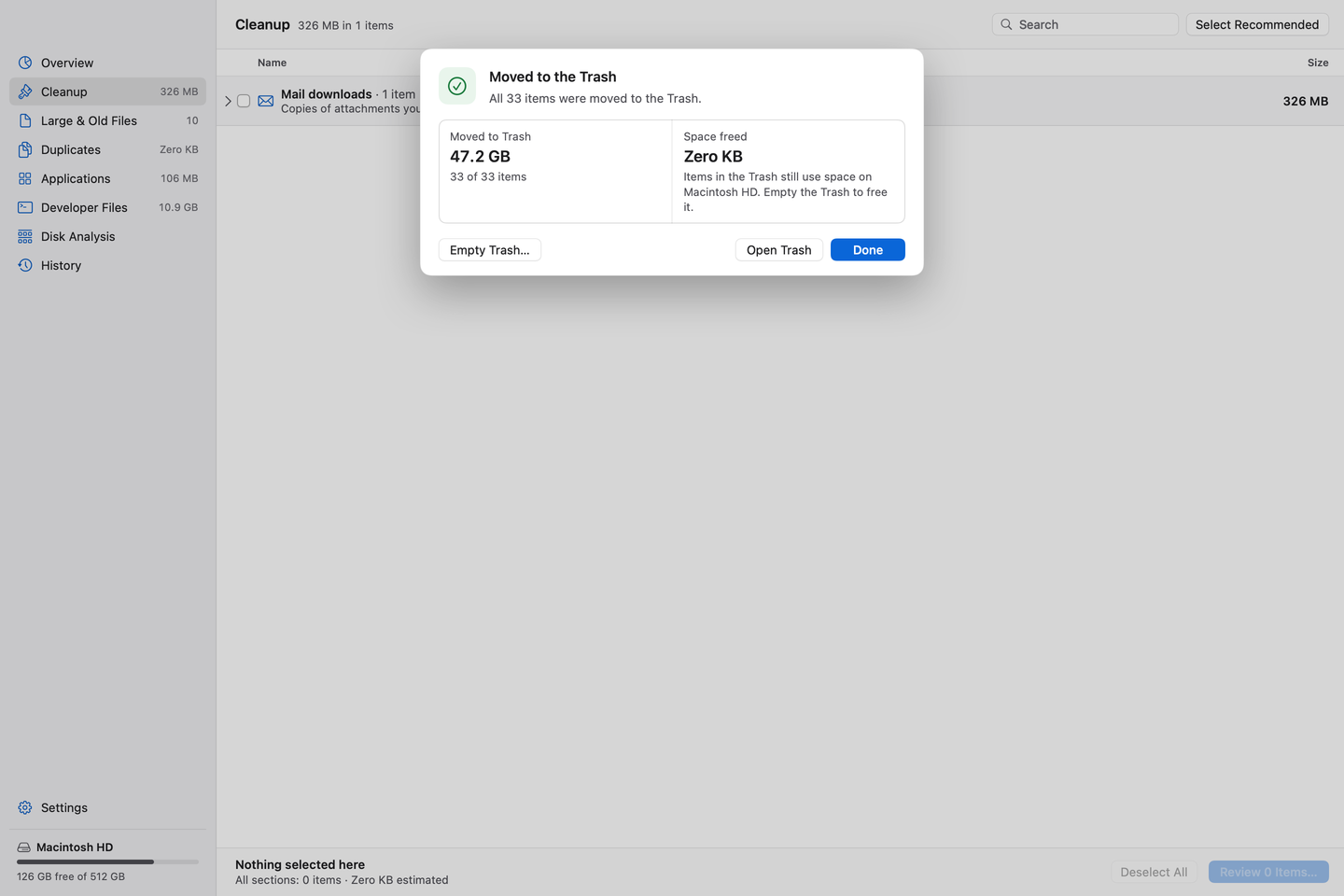
After a cleanup, DiskJoy shows two numbers: Moved to Trash and Space freed. Space freed stays at zero until the Trash is emptied, and available space in the sidebar doesn’t change either. Emptying the Trash is a separate step with its own confirmation, because it can’t be undone.
Quick checklist
- Check the Trash for anything you want to keep, and use Put Back.
- Empty the Trash.
- Check System Settings › General › Storage.
- If space still hasn’t changed, give macOS some time to release purgeable space, or restart.